Getcaller helps iPhone users check unfamiliar numbers and use caller ID features with Apple’s call identification settings. iOS caller ID behavior depends on Apple settings, app permissions, region, and available number data.
App StoreInstall Getcaller from the official App Store link, complete onboarding, and enable call identification settings where available.
Search unfamiliar or missed-call numbers to review available caller context before responding.
Use caller context and iPhone call settings to make more informed decisions about suspicious calls.
Some calls may not show caller context because of settings, permissions, region, or data availability.
No Caller ID, private, spoofed, or newly created numbers may limit what any caller ID app can identify.
If a caller asks for codes, payment, passwords, or personal information, pause and verify through an official channel.
Experience a clean, intuitive interface designed for quick caller identification.
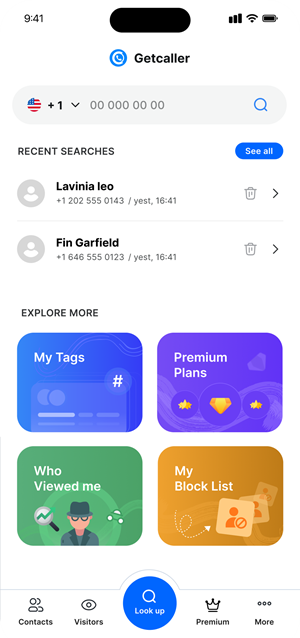
Apple controls call identification permissions and display behavior on iPhone.
Use number lookup when caller ID is limited or a missed call looks unfamiliar.
Caller context may vary by number, country, device settings, and available data.
If caller ID does not appear, review iOS call identification settings and app permissions.
Use the official App Store link for Getcaller on iPhone.
Open the app, complete onboarding, and enable call identification settings where available.
Review available caller context and verify suspicious or urgent calls through official channels.
Download the Getcaller app to identify unknown callers and manage unwanted calls.
App StoreMay we use analytics cookies to understand how this site is used? You can refuse and keep using the site, or change your choice here later.